Karyn Traphagen has published a review of my HebrewBible iPhone app and compared it to Olive Tree's Bible iPhone app on her blog. Her comments on my Hebrew Bible iPhone app were all accurate; however, one thing that readers might assume from her article is that only a subset of the Bible text can be downloaded and stored locally (cached) on the iPhone. In reality, the user has the option to download either individual Bible books/chapters or entire Bibles (any or all of the eight Hebrew Bible versions that are currently supported) at no additional cost. In addition, they can download the root lookup functionality pages to provide an offline way of researching Hebrew words. If the user wants to minimize the amount of storage space taken up by the program on the iPhone, then they can choose to access all content over the Internet. For people who always have access to high-speed 3G or wifi connections or who have little remaining space on their iPhone, this makes the program usable while consuming minimal iPhone storage.
Tuesday, September 22, 2009
Thursday, August 20, 2009
| [+/-] |
HebrewBible Release 2.1 now available on App Store |
I've made one fix and a nice enhancement to the HebrewBible iPhone app. The changes were approved after only 10 days this time, so that's really great (in the past, Apple has taken at least 2 weeks to approve my updates)! This update is a free upgrade for existing users of the app and I recommend that all existing users take the update. The changes:
- Fix: Fixed problem where crash occurs if a book later than Deuteronomy has been bookmarked and the user has changed the default Bible version to a Torah-only version (e.g. - one of the Aramaic versions) using the iphone preferences.
- Enhancement: Added Google Translate functionality to the "Words" tab with a segmented control that allows user to switch between "Roots" lookup functionality and "Translate" functionality. A generic translation facility (which uses Google Translate to do the translations) is also provided in addition to the existing "roots" lookup functionality. One can either copy/paste words/sentences from the Hebrew Bible or directly enter text to be translated. Note: in order to enter Hebrew (or any) text correctly, the relevant keyboard needs to have been enabled in the iPhone Settings application (under General/Keyboard/International Keyboards). The input and output text automatically adjusts to the appropriate "left-to-right" or "right-to-left" text orientation based on the translation languages that have been selected.
Monday, August 10, 2009
| [+/-] |
HebrewBible Release 2.1 submitted to Apple for approval |
I've made one fix and a nice enhancement to the HebrewBible iPhone app. The changes have been submitted to Apple for approval. Usually, changes take about 1-2 weeks to be approved for release on the Apple App Store and I'll post here again when they're available (it's a free upgrade for existing users of the app). The changes:
- Fix: Fixed problem where crash occurs if a book later than Deuteronomy has been bookmarked and the user has changed the default Bible version to a Torah-only version (e.g. - one of the Aramaic versions) using the iphone preferences.
- Enhancement: Added Google Translate functionality to the "Words" tab with a segmented control that allows user to switch between "Roots" lookup functionality and "Translate" functionality.
Saturday, July 18, 2009
| [+/-] |
New Version of Hebrew Bible iPhone App Available |
Yesterday, Apple approved Version 2.0 of my Hebrew Bible iPhone application. In addition to providing 8 different versions of the Hebrew Bible (which can either be read online with no content stored on the iPhone or cached locally for off-network reading) and Hebrew word lookup/lexicon, this version includes links to over 200 Wikipedia articles and provides Google Maps of over 1,000 locations.

Apple made me change the rating of the app to "17+" to indicate that there are "Frequent/Intense" types of "Mature/Suggestive Themes". Their reasoning for this was:

"Our review indicates that the application content is not consistent with the current rating. HebrewBible allows unfiltered access to wikipedia.org, where content with mature or suggestive themes can be accessed."
Hmm, a rating of "17+" seems to boost sales of certain movies - maybe I can expect a sudden spike in downloads now! ;-)
Friday, July 17, 2009
| [+/-] |
HebrewBible Release 2.0 now available on App Store |
I've made a large number of enhancements and a couple of fixes to my Hebrew Bible iPhone application. Since it's pretty major, I've made this the 2.0 release of the app. The changes have been approved by Apple and the new version is now available on the App Store (it's a free upgrade for existing users of the app). The changes:
- Enhancement: Added Maps for over 1,000 locations mentioned in the Hebrew Bible.
- Enhancement: Added Wikipedia links for over 200 topics mentioned in the Hebrew Bible.
- Enhancement: Added ability to access Bible content by Parashah (weekly synagogue Torah/Haftarah reading).
- Enhancement: Added separate flip-side view for Bible version selection and Cache operations (accessible via the "i" button in the bottom-right of the Bible screen.
- Enhancement: Added a "Clear Cache" button to clear stored content to free up space on device.
- Enhancement: Automatically turn "On" caching when user downloads Bible or Root content.
- Enhancement: Due to user requests, have changed the Bookmark default to "On" so that the picker positions to the last Bible chapter read on application start.
- Fix: Corrected problem with caching of the Hebrew/French Bible version.
- Fix: The above flip-side view enhancement also fixes the problem that people have had (following the iPhone OS 3.0 upgrade) with the "Hebrew with vowels" option not being selectable from within the app.
Sunday, July 5, 2009
| [+/-] |
HebrewBible Release 2.0 submitted to Apple for approval |
I've made a large number of enhancements and a couple of fixes to my Hebrew Bible iPhone application. Since it's pretty major, I've made this the 2.0 release of the app. The changes have been submitted to Apple for approval. Usually, changes take about 1-2 weeks to be approved for release on the Apple App Store and I'll post here again when they're available (it's a free upgrade for existing users of the app). The changes:
- Enhancement: Added Maps for over 1,000 locations mentioned in the Hebrew Bible.
- Enhancement: Added Wikipedia links for over 200 topics mentioned in the Hebrew Bible.
- Enhancement: Added ability to access Bible content by Parashah (weekly synagogue Torah/Haftarah reading).
- Enhancement: Added separate flip-side view for Bible version selection and Cache operations (accessible via the "i" button in the bottom-right of the Bible screen.
- Enhancement: Added a "Clear Cache" button to clear stored content to free up space on device.
- Enhancement: Automatically turn "On" caching when user downloads Bible or Root content.
- Enhancement: Due to user requests, have changed the Bookmark default to "On" so that the picker positions to the last Bible chapter read on application start.
- Fix: Corrected problem with caching of the Hebrew/French Bible version.
- Fix: The above flip-side view enhancement also fixes the problem that people have had (following the iPhone OS 3.0 upgrade) with the "Hebrew with vowels" option not being selectable from within the app.
Sunday, June 21, 2009
| [+/-] |
New iPhone + New Apple Developer Provisioning Profile |
Yesterday, I took some time off from the nice weather and gardening tasks to go out and get a new iPhone 3GS. First off, let me say that the speed difference is really great! I've only played around with a few of the new features (such as the video camera and compass), but the speed increase is a huge plus. Today, I got around to creating a new developer profile for my new iPhone 3GS. My old iPhone was having some problems a few months ago and Apple replaced it, so I remembered the hassles I had then setting up a new provisioning profile for the replacement device (this seems to be a common iPhone developer complaint). I had similar problems this time with the 3GS, so I've decided to note down all the things that I did to get it setup properly. Hopefully, this will help someone else (or, at least, it might remind me of the necessary steps the next time I have to do it!). Not all these steps may be necessary (and it's probably a lot easier if you're just adding a device to an existing profile rather than replacing a provisioning profile); however, I wanted to make sure I knew all the steps this time and it's what worked for me!
When you upgrade to a new device, you need to do the following:
In Apple's iPhone Developer Program Program Portal:
- Create a new provisioning profile for the device
- Set up a new device profile
- Download the new provisioning profile to the Desktop
On the Mac:
- Delete the old provisioning profile from ~/Library/MobileDevice/Provisioning Profiles/
- Drag the new provisioning profile from the Desktop into ~/Library/MobileDevice/Provisioning Profiles/
In the Organizer window in Xcode:
- Click on the device (in the left-hand pane)
- Drag the new provisioning profile into the "Provisioning" box
- Click on the "Provisioning Profiles" (in the left-hand pane)
- Double-click on the new profile name (in the top pane) - it should appear in the "Included Devices" bottom pane with an "Installed" status
- Close the Organizer window
- Press the Xcode/Empty Caches... menu option
- Close Xcode
On the Mac and iPhone:
- Power off both the Mac and the iPhone
- Power on both the Mac and the iPhone
- Attach the iPhone to the Mac
For each project you previously built with the old provisioning profile:
- Right-click on the [projectname].xcodeproj file and select "Show Package Contents"
- Make a backup copy of the project.pbxproj file
- Use a text editor (I used Emacs) to edit the project.pbxproj file:
- Delete any lines that have the key CODE_SIGN_IDENTITY
- Delete any lines that have the key PROVISIONING_PROFILE
- Delete any lines that have the key "CODE_SIGN_IDENTITY[sdk=iphoneos*]"
- Delete any lines that have the key "PROVISIONING_PROFILE[sdk=iphoneos*]"
In Xcode, for each project you previously built with the old provisioning profile:
- Open the project
- Press the Build/Clean All Targets menu option
- Press the Project/Edit Project Settings menu option
- On the Build tab under "All Configurations", chage the "Code Signing Identity" value to iPhone Developer
- On the Xcode dropdown menu, select to build on the Device
- Press the Build/Build and Run menu option (the application should build and load on the device)
That's what worked for me. If anyone has an easier/alternative approach, let me know and I'll publish relevant comments in updates to this post.
Tuesday, May 26, 2009
| [+/-] |
Flyer for HebrewBible iPhone Application |
I've just created a PDF flyer for my HebrewBible iPhone Application. It's suitable for posting on a bulletin board and gives a brief description of the application along with some "tear-off tabs" that make it easy for people to remember how to get the app. Click on the image to download the PDF:

Sunday, May 17, 2009
| [+/-] |
HebrewBible Release 1.1 now available on App Store |
Wow, that was quick. After only 4 days, my update was approved by Apple and is now available (as of May 16th) on the App Store as a free update. The changes:
- Enhancement: Added Prev/Next segmented control for navigation between chapters.
- Enhancement: Added Bookmark preference setting to "remember" last book/chapter read and position picker to that book/chapter on application start.
- Fix: Corrected issue that prevented caching of the Hebrew/French bible.
- Fix: Minor corrections to the text on the "About" page.
Tuesday, May 12, 2009
| [+/-] |
HebrewBible Release 1.1 submitted to Apple for approval |
I've made a number of enhancements and fixes to my Hebrew Bible iPhone application. They have been submitted to Apple for approval. The changes:
- Enhancement: Added Prev/Next segmented control for navigation between chapters.
- Enhancement: Added Bookmark preference setting to "remember" last book/chapter read and position picker to that book/chapter on application start.
- Fix: Corrected issue that prevented caching of the Hebrew/French bible.
- Fix: Minor corrections to the text on the "About" page.
Thursday, May 7, 2009
| [+/-] |
Background on Mechon Mamre Hebrew Bibles |
I recently exchanged some emails with the creator of the Mechon Mamre site (from which I retrieve the Hebrew Bible content for my Hebrew Bible iPhone Application). I was discussing with him the sources that he used for developing the different Hebrew Bible versions on his site. He sent me an interesting explanation which I've reproduced here (with his permission). My previous email comments (which he was replying to) are interspersed in his reply and I've highlighted my comments in italics (there are several email exchanges that I've merged together as a single conversation for this post). I've also added some links that were not in his email and slightly edited the post:
I took a look at your web page and noted a glaring error or two:
The Hebrew versions are NOT just based on the Leningrad Codex, but are our own syncretic works based on several fine old Tiberian manuscripts, with emphasis on the Aleppo Codex (rather than the Leningrad Codex, which was consulted, however). The Aramaic is based on the Yemenite versions (tijaan) of Targum Onkelos.
> I've changed the web page. Could you please have another look
> at it and let me know if it is correct now? Also, you mentioned
> "several fine old Tiberian manuscripts" but I don't remember
> seeing mention of other Tanakh documents anywhere on your
> site. Are they listed somewhere on your site or can you point
> me to an online reference? I would like to make certain I am
> accurate in my description. On the web page, I revised my
> comment to read: "The Hebrew versions are syncretic works
> based on several fine old Tiberian manuscripts, with emphasis
> on the Aleppo Codex, and with consultation of the Westminster
> Leningrad Codex (WLC)."
Actually, the BHS version of the Leningrad Codex was consulted, but not the WLC.
> Would it be better to say:
> "The Hebrew versions are syncretic works based on the
> Westminster Leningrad Codex, corrected with content from
> the Aleppo Codex and several fine old Tiberian manuscripts."
> Does that sound better and would it more clearly represent the
> Tanakh content on Mechon Mamre?
Not better in my opinion and not correct, due to my not even having the WLC (other than in the "Sword Project", which I did not consult in preparing our Bibles).
> I am assuming that you originally started with the WLC
> version (since it was already available in digital form)
> and corrected that copy with the Aleppo Codex and other
> manuscripts - is that accurate?
No, I did not start with it, and in fact do not even have a copy of it. I actually started with the "BHS" of CCAT at Shamash which is much much older than the WLC. From that 1970s ASCII set of texts I generated a set of letter only, letter+vowel, and letter+vowel+cant versions in various encodings from macros in a DOS editor (I wrote and maintain the site in that DOS editor from vedit.com written originally in about 1987). It took only about 8 hours to turn the funny ASCII files into a whole Bible with cantillation marks in standard HTML4 UTF-8 encoding. But then there were years of editing. @:-D
> It would be nice to know what other Tiberian
> manuscripts were used - you have sparked my interest!
You can see them all described and explained in the works of the Rav Mordechai Breuer, such as "The Aleppo Codex and the Accepted Text of the BIble" (Mosad Harv Kook, Jerusalem, 1976), his notes to Da`at Miqra' (same publisher), his various Bible editions and their notes (same publisher and Chorev), BHS notes, Jerusalem Crown notes, and the like. I used Breuer's data and other data, but here and there came to different decisions from Breuer's on what the best text is; most of the time my versions and the various Breuer editions are very close to each other (as would be expected). Clearly, the text in "modern full spelling" without vowels is rather subjective, as full spelling is wont to be. The letter text of the Torah is identical to the best Yemenite manuscripts and scrolls, aside from poTi fera` (3 times), which is poTifera` (no space) in the Yemenite nosaH.
This project, by the way, started way back in 1990 when I worked in DOS3.3 without lots of the resources that became available much later allowing lots of fine tuning of the originally letter-only texts. Still more added resources may become available and be used to further tweek the texts. Who knows? @:-D
I have compared our letter texts with other electronic versions and was consistently shocked by the low quality of electronic texts (a Bible from a famous publisher in the US had 87 errors in spelling in the Torah alone, including `asitem spelled without the y-t-m ending!!!). Many such texts were obviously typed and not proofread, including those from the most famous electronic publishers, who demand hundreds of dollars for their badly broken texts.
Fascinating to hear some of the history of the creation of the Hebrew Bible texts on Mechon Mamre! I've since revised the description on my Hebrew Bible iPhone Application) web page to read:
"The Hebrew versions are syncretic works based on several fine old Tiberian manuscripts, with emphasis on the Aleppo Codex, and with consultation of the Leningrad Codex. The English versions are based on the original Jewish Publication Society (JPS) translation of 1917. The French version is based on the "La Bible du Rabbinat Français" translation. The Aramaic versions are based on the Yemenite versions (tijaan) of the "Targum Onkelos" translation."
Tuesday, May 5, 2009
| [+/-] |
Brochure for HebrewBible iPhone Application |
I've just created a brochure for my HebrewBible iPhone Application. Click on the image to download the PDF:

Monday, May 4, 2009
| [+/-] |
My First iPhone Application is on the Apple App Store! |
Woohoo - I just found out that my Hebrew Bible iPhone Application has been approved for release on the Apple App Store! The iTunes link is: http://itunes.com/app/HebrewBible. That's really neat!
I've already posted previously about:
- Resources that I found useful while learning to develop on the iPhone.
- Development notes that highlight some of the problem areas that I encountered while developing the app.
On the whole, the entire iPhone development experience has been quite fun and mostly hassle-free.
Wednesday, April 29, 2009
| [+/-] |
Fonts for Hebrew Bible with Cantillation Marks / Safari Mac OS X |
In addition to the other Hebrew Bible versions that are available on the excellent Mechon Mamre site, there is a version with cantillation marks. As is explained on the Mechon Mamre "Fonts for Bible with Cantillation Marks" page, the normal Hebrew fonts that are available on most Internet browsers do not support the display of cantillation marks properly. The site goes on to look at some options that are available for Windows PC's but Mac options are not discussed as the author does not have a Mac. So, I decided to have a look at the different font options available for Hebrew (with cantillation marks) on the Mac.
Both Safari 4 beta and Firefox 3 on the Mac display Hebrew quite nicely (with and without vowels); however, I wasn't sure whether they would display cantillation marks properly. I decided to test the various alternative options to see what would work best. In all cases, I used the default Mechon Mamre CSS file with just a modification to the font family to select the desired font. All tests were done on a MacBook Pro laptop running Leopard 10.5.6. Screen shots are from Safari 4 (public beta but the new version is supposed to be released in mid-2009).
To start off, here is a snippit that illustrates some of the different types of marks - I've used it as a "canonical" example for comparison purposes:
Gen. 1:9 And God said, "Let the waters be collected".
Letters in black, vowel points and d'geshim (letter doublings) in red, cantillation signs in green
Here is an extended selection from Genesis that includes that same phrase using different fonts (some of the font comments I've taken from the Mechon Mamre site). First off, I'll show an example of how this is displayed in IE under Windows. Then, I'll show how the same text is displayed under Safari with a number of alternative fonts:

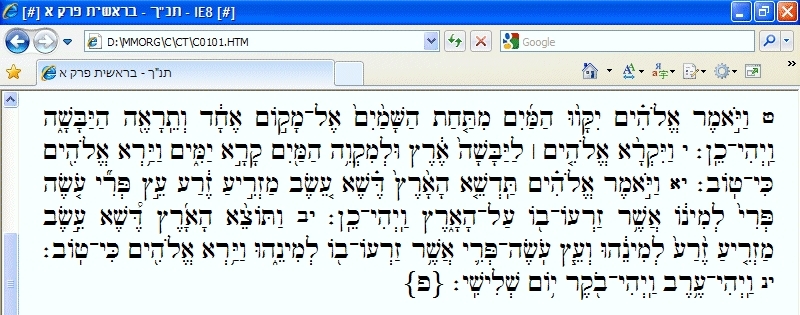
Internet Explorer on a Windows PC using the Ezra SIL font:
No font specified (default Hebrew font for Safari 4):

Ezra SIL SR, which has traditional rounded marks:

Ezra SIL, which has straight marks as in most old manuscripts:

Code2000:

Cardo:

SBL:

Safari Arial Unicode font:
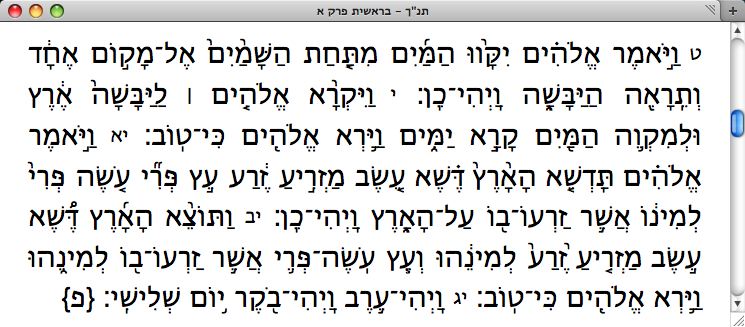
As can be seen, there is quite a lot of variance in how the cantillation marks are displayed with the different fonts. To my untrained eye (for the most part), it looks like the default Hebrew font for Safari 4 displays the cantillation marks as well or better than the 3rd party fonts under Safari. An exception: the default font is putting the cantillation mark above the Qof instead of above the vav in the example; but, the default Safari font is displaying the letter doublings and vowel points better than many of the 3rd party fonts. However, when you compare any of the Safari examples with the IE/Windows example, the Safari ones are far inferior. I believe this is due to the way that Microsoft is handling the placement of the special cantillation marks in their usp10.dll. It would be really great if Apple could improve support for Hebrew and Arabic vowels and cantillation marks in Safari so that they are displayed as well or better than Microsoft's Internet Explorer. I have submitted a bug report to Apple and I'll update this post when I get a response.
| [+/-] |
iPhone App Development Notes |
As I mentioned in my previous post, I'm learning how to write code for the iPhone. While working on my first iPhone app (currently awaiting app store approval!), I came across a number of "gotchas" and things that required a bit of research to resolve. Not to say that they were particularly difficult to resolve; however, they did require a bit more work on my part to find solutions. In case my experience can benefit others (and also to record these things for my own benefit), I'll list them here on my blog. In no particular order:
- Initialize Settings: When you create an iPhone app, you'll often want to store user preferences in the standard "Settings" location. This is really easy to setup. However, what isn't mentioned is that the settings aren't "initialized" until the first time you access them (this isn't intuitive as they appear as initialized values when you access them the first time in Settings). This one was difficult to diagnose as the application worked sometimes (e.g. - when I had already gone in to check the preferences before starting the app) but not others (e.g. - when I had removed the application and re-installed from scratch on the iPhone and had started up the app before looking at the preferences). Unfortunately, there's no error message and some functionality works and some doesn't, so it's a tricky one to catch. It's easy enough to initialize the preferences, but you need to know that it's something that you have to do (see Apple's AppPrefs sample code. Also, see this post for some generic code that you should be able to reuse easily - but note that there is a memory leak in the example provided in the post. There should be a "[defaults release];" statement at the end of the sample code.).
- Internet Connectivity: My application needs Internet access in order for some functionality to work properly, so I test for a connection on startup and get a notification if the connection is lost. Apple has some good sample code that demonstrates how to do this (see the Apple Reachability example).
- Dependent Components in a Picker: I needed to have dependent components in a picker (e.g. - Books displayed in component #1 of the picker and Chapters displayed in component #2 of the same picker - therefore, the Chapters component values needed to vary based on the Book that had been selected). There is a good example of how to setup dependent components in Chapter 7 of the excellent Beginning iPhone Development: Exploring the iPhone SDK book.
- Re-using Buttons: I have a navigation bar with a button that plays/stops audio playback and I wanted the button description/action/shape to change (e.g. - I have a "Play" button and I wanted it to change to a "Stop" button once "Play" has been pressed). To enable this, you can do something like this:
[doPlaySoundBarButton release];
doPlaySoundBarButton = [[UIBarButtonItem alloc]
     initWithBarButtonSystemItem:UIBarButtonSystemItemStop
     target:self
     action:@selector(stopSoundPressed)];
self.navigationItem.rightBarButtonItem = doPlaySoundBarButton; - Memory Management: There is no GC on the iPhone, so you need to make certain you aren't leaking memory anywhere. There are some good explanations on how to do this (see here and here) and some good tools. I used a combination of Xcode's "Leaks" in the "Instruments" tool for interactive analysis (see this tutorial for a great set of instructions on using Leaks) and clang for static analysis (see these step-by-step instructions and this user script for running clang from inside of Xcode. Getting clang setup is a bit of a fiddle; however, once you've used it, you'll be happy you did. While Leaks helps you track down the memory leaks you discover during testing, clang catches potential memory leaks in code branches that you may not be testing. It's a really cool tool!
- Caching web content locally: I access web sites in my app and wanted to give the user the option to cache some content locally on the iPhone (both for performance reasons and so that the content is available when there is no Internet connectivity). To see how to do this, have a look at Apple's URL Cache sample code.
- File Encodings: If you're saving content to the iPhone that you're reading off the Internet, you may encounter files that are encoded in odd formats. NSStringEncodings only supports a subset of encodings; however, CFStringEncoding supports a more complete set of encodings. So, for example, to read a Hebrew HTML page encoded with "charset=Windows-1255" and write it to a location on the iPhone, you can do something like this:
NSString *fileString = [[NSString alloc] initWithContentsOfURL:url
     encoding:CFStringConvertEncodingToNSStringEncoding (kCFStringEncodingWindowsHebrew)
     error:nil];
[fileString writeToFile:filePath
     atomically:YES
     encoding:CFStringConvertEncodingToNSStringEncoding (kCFStringEncodingWindowsHebrew)
error:nil]; [fileString release]; - Disabling Sleep: For certain long-running actions, I wanted to ensure that the iPhone didn't go to sleep while it was performing those activities. To prevent this, do the following:
[UIApplication sharedApplication].idleTimerDisabled = YES;
Remember to undo this after your long-running action has completed! - Streaming Sound: Most iPhone sound examples effectively "take over" the device while the audio is playing. I wanted to be able to "stream" sound from a remote site in a background thread while the user was scrolling though text in a foreground thread. Luckily, I found Matt Gallagher's excellent article to help me figure this out.
- Using WebViews: This isn't hard once you've done it; however, I initially had trouble finding good examples. The free "Network I/O" sample chapter from the upcoming iPhone SDK Development book had a good basic example of how to create a WebView that loaded both local and remote URL's. Once I had played around with that a bit, the rest of the WebView stuff that I had to do came pretty easily. One thing that I did that others may need to do is to open cetain types of links using another application (e.g. - in Safari or Mail) rather than in the WebView.
- Executing JavaScript: After loading a remote HTML page, you can execute JavaScript from Objective C to manipulate the content. I do this mostly for stylistic reasons - for example, to remove any HR elements in an HTML page:
#define kJavaScriptCmd @"var tagArray = document.getElementsByTagName('hr');for(i = 0; i < tagArray.length; i++){var j=tagArray[i];j.style.display='none';}"  <br/>
NSString *jsCmd = [NSString stringWithFormat:kJavaScriptCmd];
[self.webView stringByEvaluatingJavaScriptFromString:jsCmd]; - Landscape Mode with Tab View Controllers: My app uses a Tab View Controller but the Tab View Controller template supplied by Apple doesn't support landscape mode. There are a number of different solutions to this; however, this one was easy and worked well for me.
- SCM: Setting up Subversion for my project was pretty easy. However, it was easy because I followed Jeff LeMarche's great step-by-step instructions. Be sure to read the comments. In particular, the one about setting up the Subversion "global ignores" to exclude Xcode settings and other cruft that shouldn't be put into your Subversion repository.
- Xcode Customizations: I'm a long-time Emacs user and I prefer Emacs to IDE's like Xcode, Eclipse, and Visual Studio. However, I'm still learning iPhone development and developing without Xcode would be too much of a pain at this stage. Also, as IDE's go, Xcode isn't bad (it's definitely better than Eclipse and Visual Studio which I've had to use in the past). For the time being, I've made do with just some customizations to key bindings, color theme, and some user scripts. At some point in the future, I might write a blog post about these customizations. In the meantime, I wanted to digress to "ask the lazyweb" about some Xcode issues:
- Digression#1: Has anyone discovered/created a key binding for the "get api documentation for symbol at point" functionality in Xcode (similar to C-h-v and C-h-f in Emacs)? It's available using option-double-mouse-click when you're on a symbol; however, I couldn't find a key binding for it so that I could avoid using the mouse. I could create a user script; however, there must be a key binding for it somewhere!
- Digression#2: Another Xcode "nit" is that I have to use the mouse (using the little icon under the "lock" icon in the upper-right-hand side of the view) to split the text editor view, to close the split, and to switch between the splits. I would like to have keybindings similar to C-x-2, C-x-0, and C-x-o in Emacs but I can't find equivalents in Xcode - anyone?
- Alternative Development Approaches: I initially prototyped my application using PhoneGap (an open source development tool for building fast, easy mobile apps with JavaScript). In combination with PhoneGap, I tried out both the iui and DashCode-specific frameworks for creating iPhone-like UI's. I liked the idea of being able to create an iPhone app using just HTML and JavaScript as I knew how to code in those already. However, after some experimenting, there were certain things that were too slow and certain functionality that wasn't available. In the end, I decided that it was better to "bite the bullet" and learn how to develop iPhone applications using Objective C. I don't regret making the effort; however, if you want to develop an iPhone application that you can easily port to other mobile platforms, you might want to have a look at PhoneGap.
Update-2009-08-11: Under "Xcode Customizations", I listed 2 nits. I've discovered solutions to these:
- A key binding for the "get api documentation for symbol at point" functionality in Xcode: I found that I can do this by creating two bindings:
- Bind C-x C-s to "Select Word"
- Bind F1 to Help/Find Selected Text in API Reference
Now I can find the API documentation for the symbol at point by pressing "C-x C-s F1". It would be nicer to have just a single keybinding but... - A key binding to split the text editor view: Cmd-" will split the window vertically, and Alt-Cmd-" splits horizontally (thanks to Chris for pointing this out). You can close the splits with Cmd-'
Monday, March 30, 2009
| [+/-] |
Starting ... |
I've recently been developing an iPhone application. It's been an interesting experience since, although I've been a Mac user for years, I haven't really developed for a Mac platform in the past. All of my programming in recent years has been for server-based applications, so I haven't really done any UI stuff (outside of HTML/Javascript-based UI's) for a couple of decades. Learning a new programming language (with it's libraries and frameworks) and development environment is (in some ways) like learning to program again. Sure, you aren't learning everything from scratch; however, there are all the little "gotcha's" that you have to find out about and you have to look up documentation a lot more to figure out how to do certain things.
Learning to program in Objective-C was not a big jump. In the past few years, I've been mostly programming in C and Lisp (with a bit of Java and proprietary languages thrown in as well), so picking up Objective-C wasn't a big deal. For anyone who has programmed in C and who has had some exposure to an OO language, Objective-C is pretty easy to pick up. However, learning to program on the iPhone is a bigger jump. The resources that I found most useful were:
- Beginning iPhone Development: Exploring the iPhone SDK: Excellent introduction to developing on the iPhone.
- Sample code from Apple (you'll need an Apple developer account to click through the link): Great for figuring out how to do things.
- The iPhone Developer's Cookbook: Building Applications with the iPhone SDK: The author of this book develops without using Interface Builder (IB). This is extremely useful as most books and example code use IB and it is good to know how to do things without IB as well.
- Learn Objective–C on the Mac: I just read a few chapters of this one and skim it when I need to.
- iPhone in Action: Most useful for illustrating and comparing web-based and SDK-based development approaches for the iPhone. Better as an overview than as a programming tutorial though.